
Access · Troubleshooting
Sign in to the platform or reset your password
Sign in to the platform workspace with your username and password. A six-digit email code is needed only when your organisation or account has enabled the extra verification step. If Forgot password is offered, you can reset the password with an email code.
Last reviewed:
On this page
Goal
Regain access to your organisation's workspace without sharing passwords or verification codes.
Before you start
- Your organisation has created an active platform account for you.
- Access to the registered email address is needed only if a verification code is requested or you want to reset the password yourself.
Steps
Try to sign in
Open the platform workspace's sign-in page and enter your username and password.
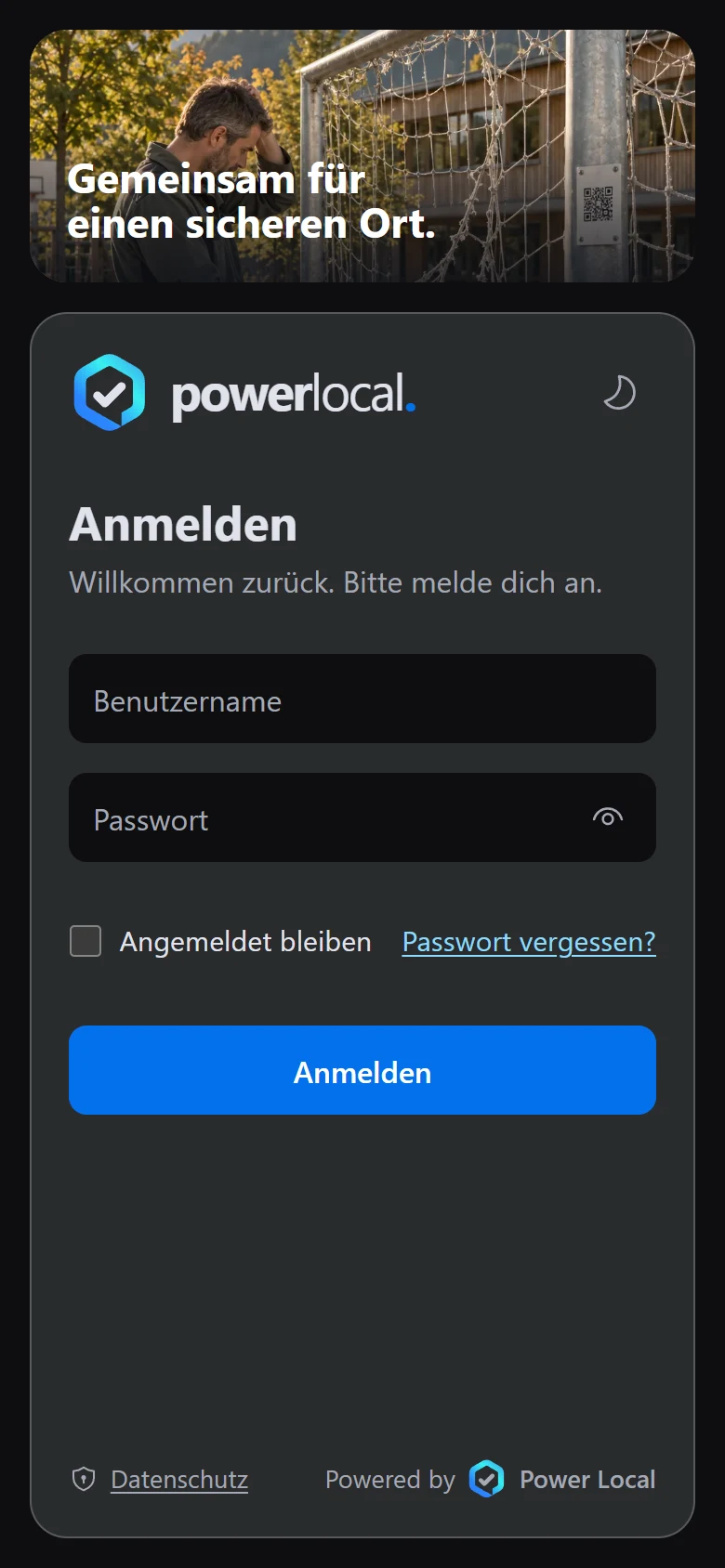
Example view with test data: the workspace sign-in page shows the «Benutzername» (username) and «Passwort» (password) fields, the «Angemeldet bleiben» (stay signed in) checkbox, the «Passwort vergessen?» (forgot password) link and the «Anmelden» (sign in) button. The title and appearance can differ by organisation.
Open image at full sizeConfirm an email code only if prompted
If a verification page appears after your password, enter the six-digit code sent by email. Do not share it with anyone. If the workspace opens instead, your sign-in is complete.
Start again if you forgot the password
If the Forgot password link is shown, open it and enter your username or registered email address. You need access to the registered address for this route. Follow the emailed code step. For privacy, the page does not confirm whether an account matches what you entered.
Set a new password
After a valid reset code, enter the new password twice and return to sign-in. It needs at least twelve characters, upper and lower case letters and a digit; it must not contain your username or be too common.
Check the result
After your password and any requested email code, you reach the workspace. After a password reset, sign in again with the new password; earlier sessions are ended.
If something goes wrong
- The Forgot password link is absent or you cannot access the registered email address.
- The organisation may turn off self-service reset. Ask its administration to check your access.
- A requested code does not arrive or has expired.
- Check the inbox and spam folder of the registered address. Request a new code on the page if needed. Many attempts can cause a waiting period; contact the administration if the issue continues.