
Access · Troubleshooting
When sign-in asks for a code after your password
Some team accounts need a code sent to the registered email address after the password. Enter the current code in the same browser where you started signing in.
Last reviewed:
On this page
Goal
Complete sign-in securely when an email code is requested.
Before you start
- You have a team account and know its password.
- A sign-in code is enabled for the account or organisation.
Steps
Check your mailbox
Open the mailbox for the address registered to your team account. Use only the code in the newest message for this sign-in.
Return to the original browser
Enter the code in the browser window where you supplied your password. A code from another sign-in attempt does not belong to this window.
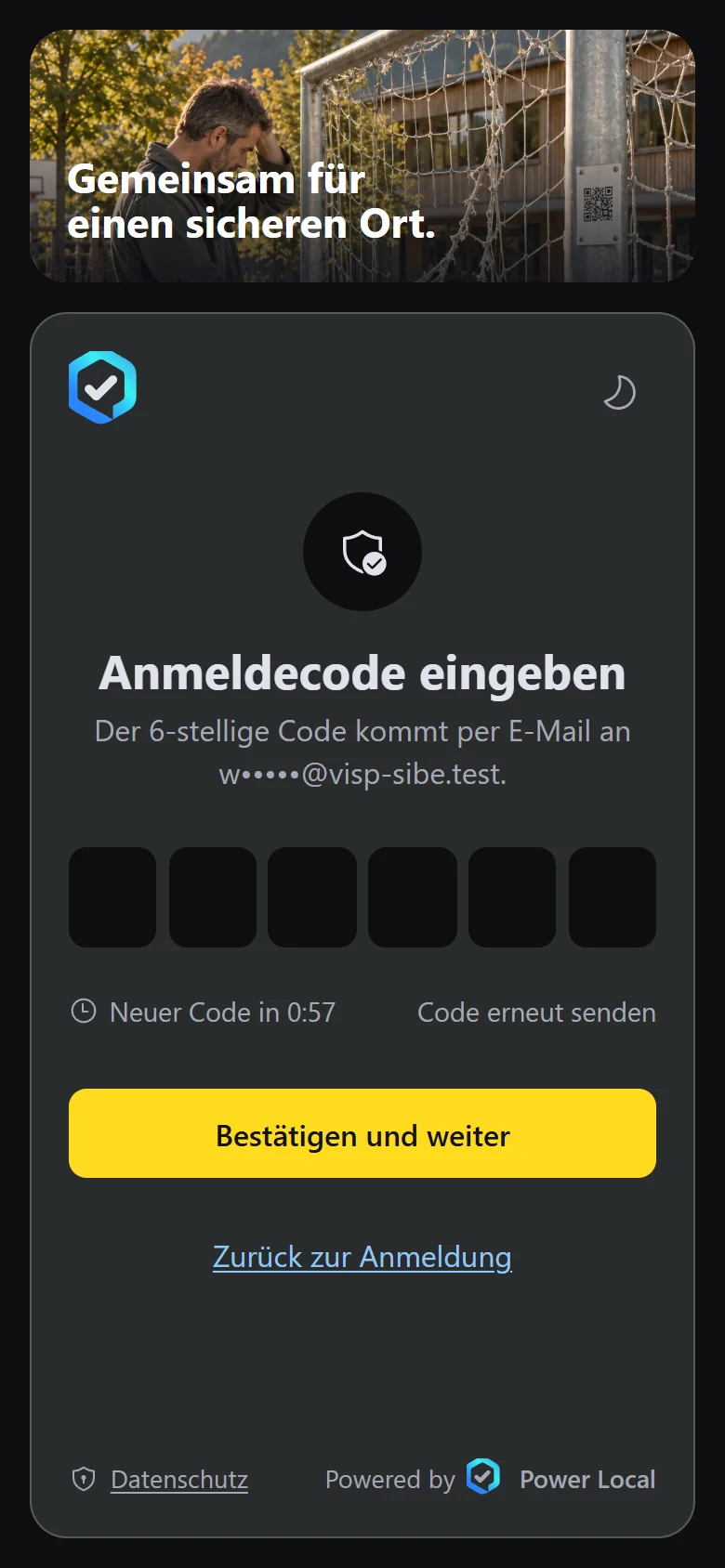
Example view with test data: the «Anmeldecode eingeben» (enter sign-in code) page shows six input boxes, a masked test address, the «Neuer Code in 0:57» (new code in 0:57) countdown, the «Code erneut senden» (resend code) link and the «Bestätigen und weiter» (confirm and continue) button. The title and appearance can differ by organisation.
Open image at full sizeFinish signing in
Submit the code and wait for the workspace. Never share a sign-in code with another person.
Check the result
A valid code completes sign-in to the team account. Without code confirmation, sign-in remains incomplete.
If something goes wrong
- No message arrives.
- Check the registered address and spam folder. Request a new code if the page offers that option. If delivery still fails, contact your administrator.
- The code is rejected.
- Use the newest code in the original browser. If needed, start sign-in again and use the new code.
Common questions
Does every account need a code?
It depends on the organisation and account settings. Some sign-ins need only the password.
Should I send the code to support?
No. Enter sign-in codes only on the sign-in page and do not share them with anyone.