
Reports · Concept
Start here: Find the right route
Do you want to report a problem, understand an object's QR code or work as a team member? Public reporting needs no team account. QR codes open different routes according to their setup. Team work starts after sign-in.
Last reviewed:
On this page
Goal
Find the guide for your task without taking an unnecessary detour.
Before you start
- You know whether you are acting as a reporter or team member.
Steps
Report a problem
Use your organisation's public reporting route. Describe the issue and location, review optional details and keep the «Report code» after submitting.
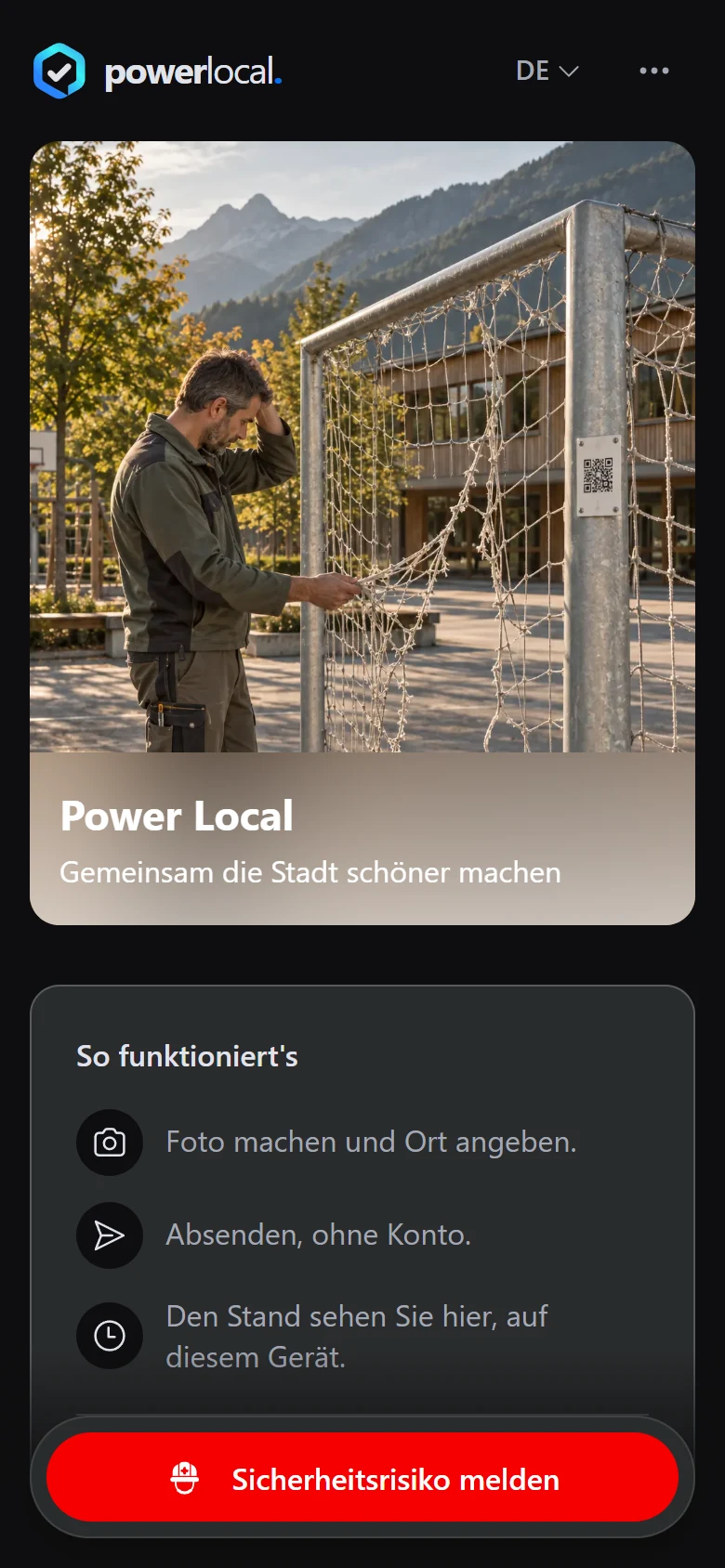
Example view with test data: the start page under the «Power Local» brand explains the route in three points, «Foto machen und Ort angeben.» (take a photo and add the location), «Absenden, ohne Konto.» (send, no account needed) and «Den Stand sehen Sie hier, auf diesem Gerät.» (see the status here, on this device), and opens the report form with the «Sicherheitsrisiko melden» (report a safety risk) button. The title and appearance can differ by organisation.
Open image at full sizeUse an object's QR code
Scan the code and check the web address. It can open object information, a report form, a choice or a checklist view.
Work as a team member
Sign in with your team account for platform work. Then open reports or objects available to you. Sign in separately to this knowledge base to read internal guides.
Check the result
You know your entry route and can open the linked step-by-step guide.
If something goes wrong
- A QR code opens an unexpected page.
- Check the code's purpose and web address. If the code is invalid, use the general reporting route.
- A team action is not offered.
- Check your sign-in and ask your administrator to review team access if needed.
Common questions
Do I need a team account for a public report?
No. The public reporting route works in the browser without a team account.
Why can I not see internal guides?
Internal guides are available to signed-in readers of this knowledge base. Signing in to the platform does not sign you in here.