
Objects and QR · Concept
Why QR codes open different routes
A QR code on an object can lead directly to reporting, to public object information, to a choice among reporting, object information and, when the object has them, its safety rules, or to a checklist view. The operating organisation sets the purpose of each code; some actions require a team sign-in.
Last reviewed:
On this page
Goal
Recognise the purpose of a scanned code and choose the appropriate next step.
Before you start
- Scan an active QR code on an object run by your organisation.
Steps
Recognise a reporting route
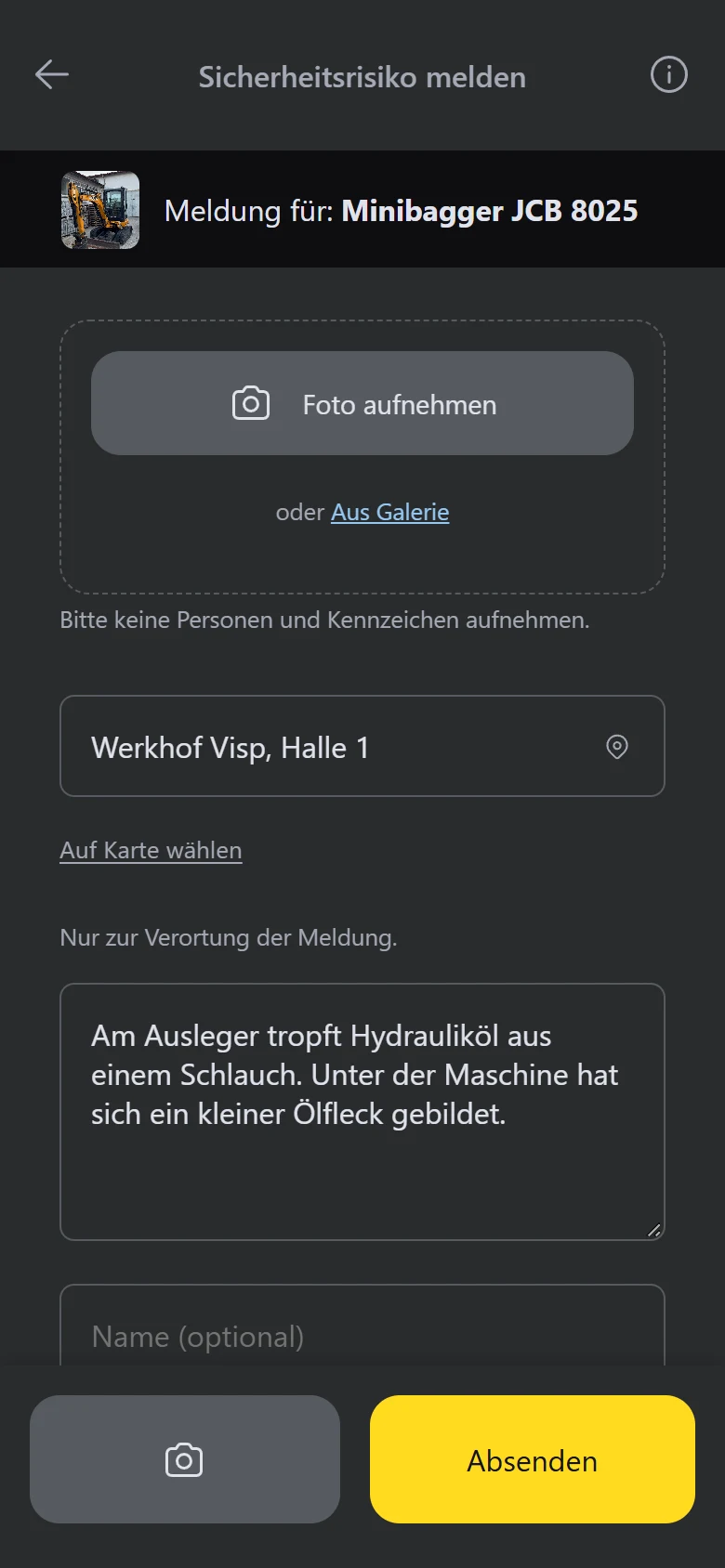
If a form opens directly, the code is set up for reporting a problem. Check the «Meldung für: …» (report for) line and location before sending.
Example view with test data: a code can lead directly to the upper part of a report form, with photo area, location and description. The title and appearance can differ by organisation.
Open image at full sizeUse object information or a choice
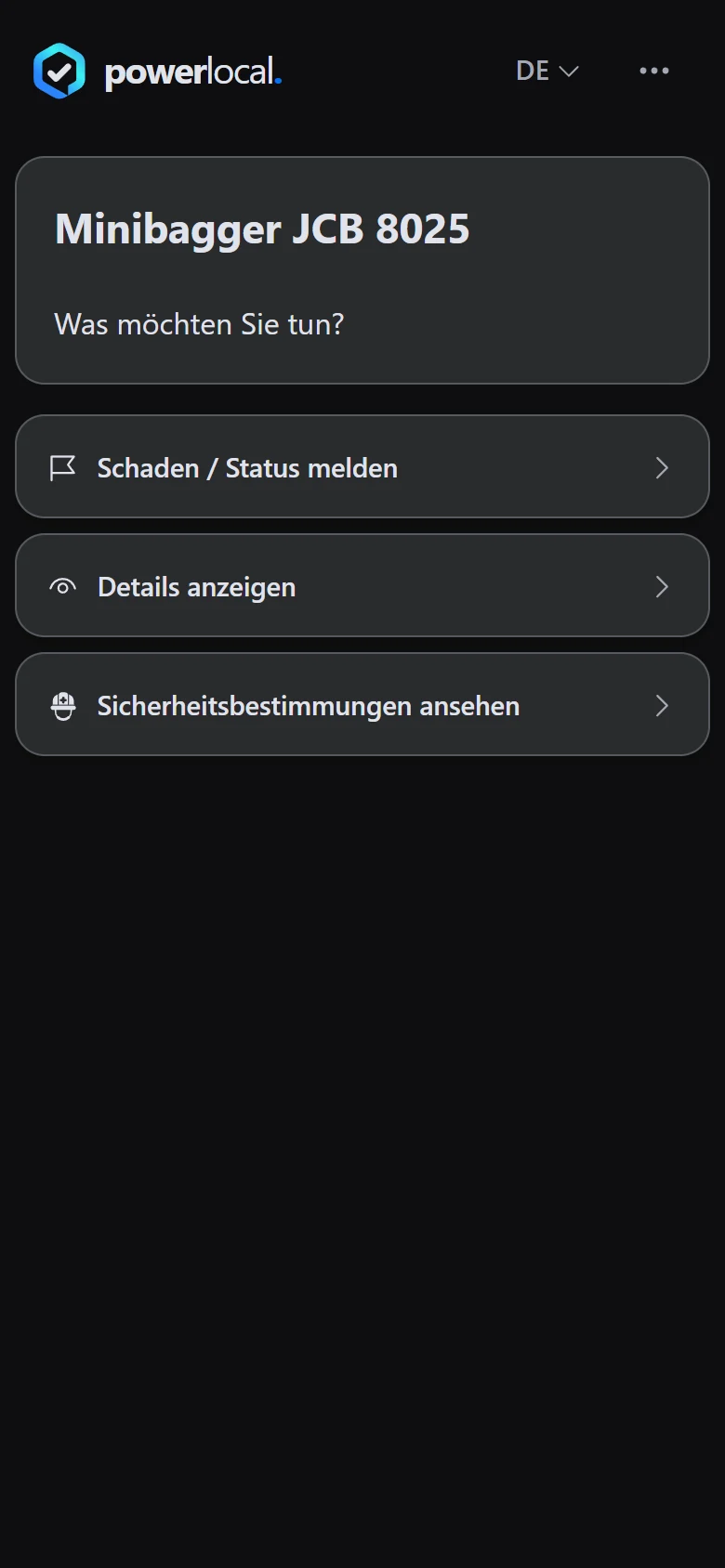
An object page shows approved details and a route to reporting. A choice page lets you choose among reporting, information and, when available, safety rules.
Example view with test data: a choice page shows the visitor «Schaden / Status melden» (report damage or status), «Details anzeigen» (object details) and «Sicherheitsbestimmungen ansehen» (view safety rules).
Open image at full sizeExample view with test data: a public object page shows a description and photo. To report, tap «Melden» (report) at the bottom left; «Anmelden» (sign in) is for staff.
Open image at full sizeUnderstand a checklist view
A code configured for this purpose can show the object's checklist. Filling it in is a team action and may require sign-in and suitable permission.

Check the result
You use the entry route intended by the operator and can distinguish a public view from a team action.
If something goes wrong
- A code does not open the report form directly.
- Check whether the object or choice page offers a reporting route. The code may be configured for another entry point.
- You cannot fill in the checklist.
- Sign in with an authorised team account or contact your organisation. A public view alone does not permit a team action.
Common questions
Are all QR codes the same?
No. The operator chooses the entry route shown by each code.
Can I report a problem from an object page?
When reporting is enabled for that object, the page offers a route to the report form.